
Table of Contents
Order Output
Overview
After an output is returned from Job Order, it goes to FG Output for the receiver to manage the output.
Start
Click on Job Order Menu. Open the Job Order and click on Output tab. Click on Return Output button.
Header
Header Details are automatically added from Job Order. Header details can be edited using the following steps:
Step 1: Click edit Header. System will open a popup to edit the information of the header. following information can be added:
- Currency: Provide the currency of the order, by default system will show local currency
- JO No: Specify the Job Order no.
- JO Closed on: Specify the Job order closing date
- Comments: Any comments regarding the Service Order.
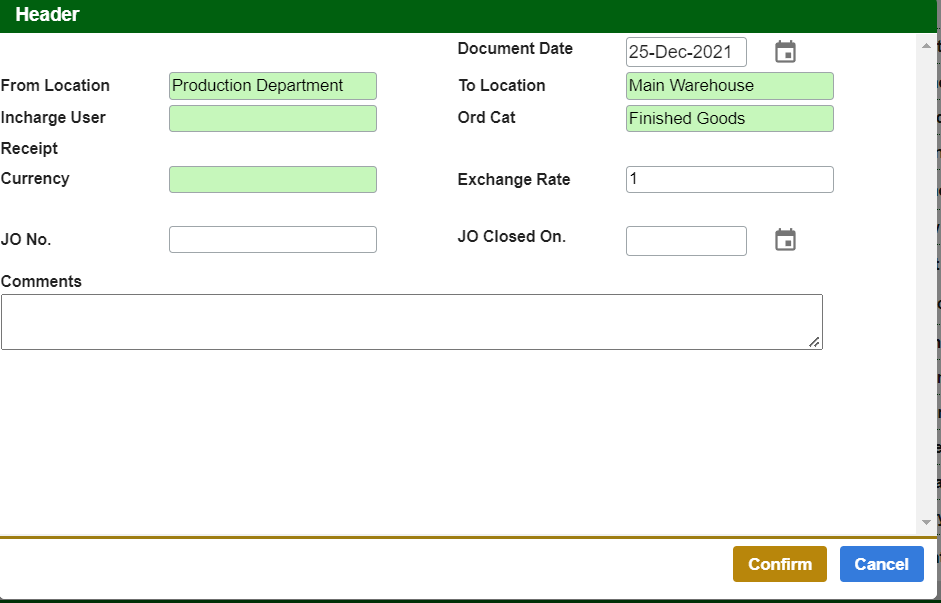
Step 2: After the information that is required is keyed in, click on the Confirm button to close the popup.
Line Items
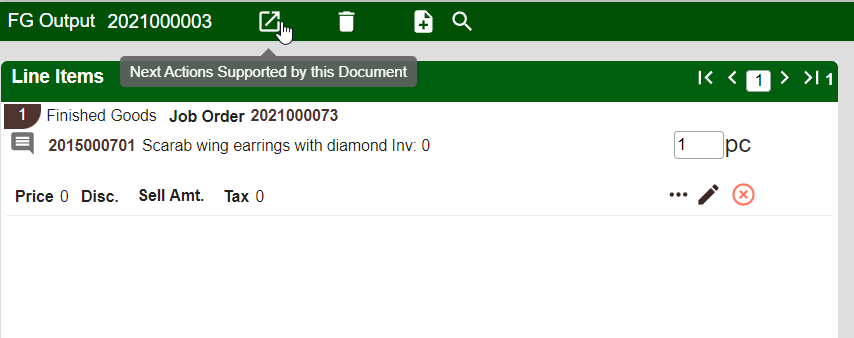
Line Items are automatically added from JO.
Payment Terms
To Edit Payment Terms, click edit Terms. System will open a popup to edit the information of the terms. following information is required:
- Payment date, Credit Days, Payment Terms and Mode of Payment
- After editing is done, click Confirm to close the popup.
Summary
This section will show the following key information
- Values: Total value of the transaction, including tax, discount, total payable
- Transaction References: Document ID, Document Code, Document Date, Currency, Budget Used, any other Reference Document that this transaction refers to
- Status of the document

Save the Document
After all changes are done, it is necessary to Save the Document, by clicking the button “Save Document”, If this is new Document, system will assign the Document ID and Code after it is saved for the first time.
Attachments
Note: Attachments can be added only after document is saved.
Step 1: After the document is saved, click on Add button in the Attachment section. This will open a popup for file selection.
Users can select the file to attach or drag and drop the file on the popup
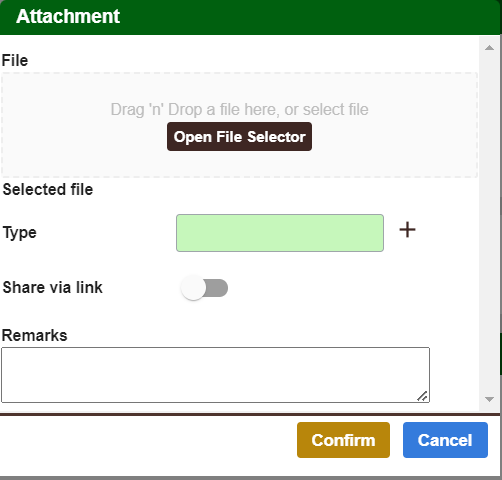
Step 2: Click confirm to close the popup
Note: At a time only one attachment can be uploaded.
Comments
Note: Comments can be added at any time, even if the document status is pending or closed.
To add comment click on Add button and provide the comment in the popup.
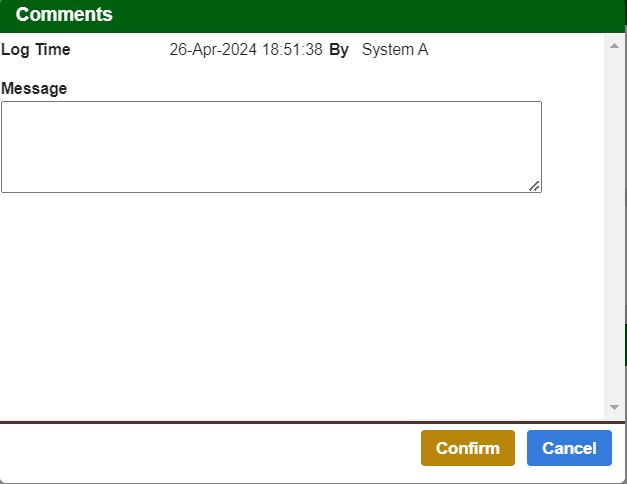
Note: User can edit only their own comment, eg: User A cannot change comment of User B