
Table of Contents
Raw Material
Start
- Click on Raw Material Menu and then click on Create New button.
Components of Raw Material
- Header
- Grouping Info
- Image
- Price
- Attachment
- Discuss
- Settings
- Batch
Header
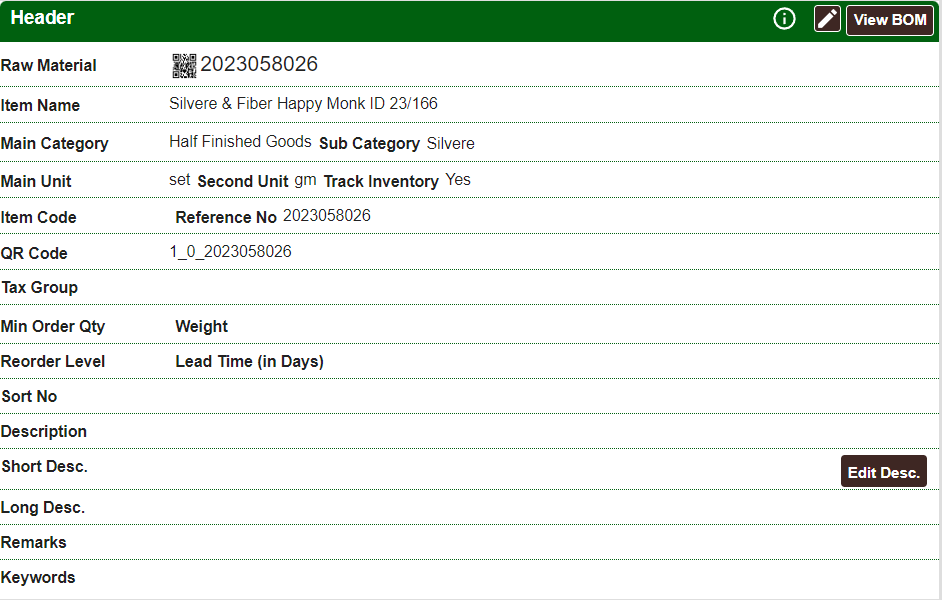
Step 1: Click edit Header. System will open a popup to edit the information of the header. following information can be added:
- Item Name: Provide the name of the item.
- Main Category: Select the main category of the item.
- Sub Category: Select the sub category of the item
- Reference No: Provide the reference no for the item.
- Nick Name: Provide nick name of the item.
- Tax Group: Select the tax group of the item.
- Main Unit: Select the main unit for the item.
- Second Unit: Select the second unit for the item if required.
- Description: Provide details about the product
- Keywords: Provide keywords for the item
- Remarks: Any remarks about the item.
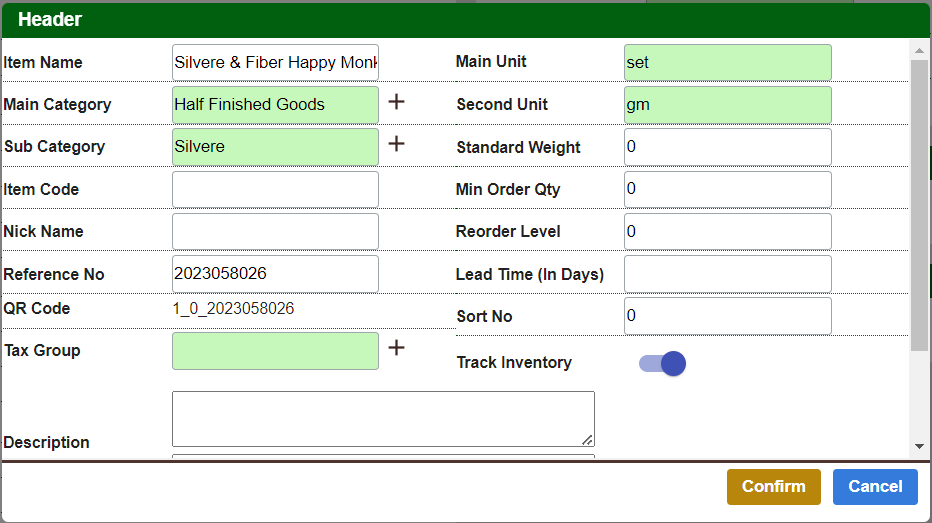
Step 2: After the information that is required is keyed in, click on the Confirm button to close the popup.
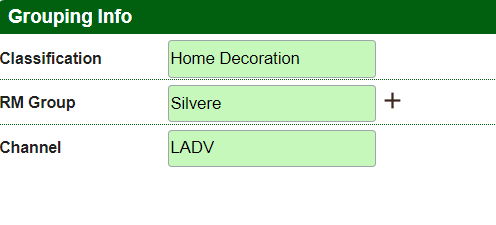
Design Grouping Info
Add additional details about the design:
- Select Classification, RM Group, Channel
Price

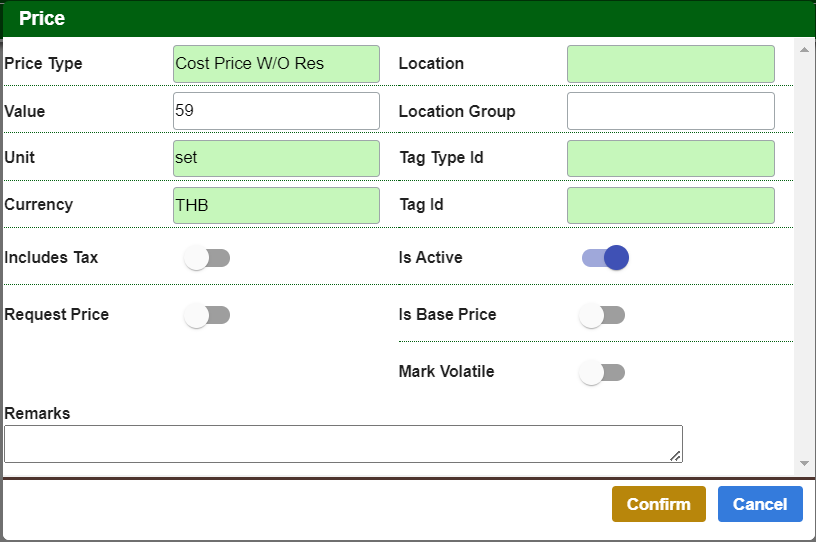
In Price section, user can add Price related to that item and its details. Step 1: Click + button in Price section. System will open a popup to edit the information of the price. following information is required:
- Provide Price type, Value, Unit, Location, Currency, tag type
- After editing is done, click Confirm to close the popup.
To edit price click on edit button for that price.
Save the Document
After all changes are done, it is necessary to Save the Document, by clicking the button “Save Document”, If this is new Document, system will assign the Document ID and Code after it is saved for the first time.
Image
Note: Image can be added only after document is saved.
Step 1: After the document is saved, click on Add button in the Image section. This will open a popup for file selection.
Users can select the file to attach or drag and drop the file on the popup
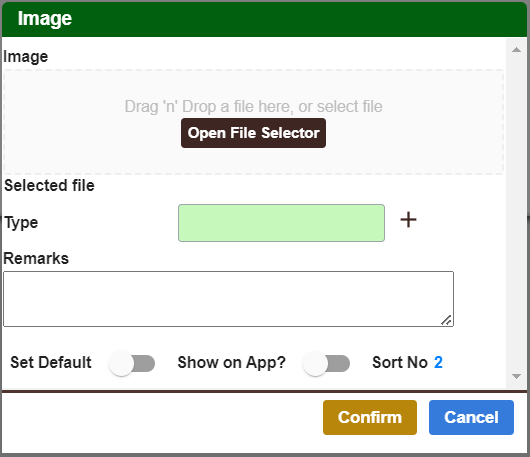
Step 2: Click confirm to close the popup
Note: At a time only one image can be uploaded.
Attachments
Note: Attachments can be added only after document is saved.
Step 1: After the document is saved, click on Add button in the Attachment section. This will open a popup for file selection.
Users can select the file to attach or drag and drop the file on the popup
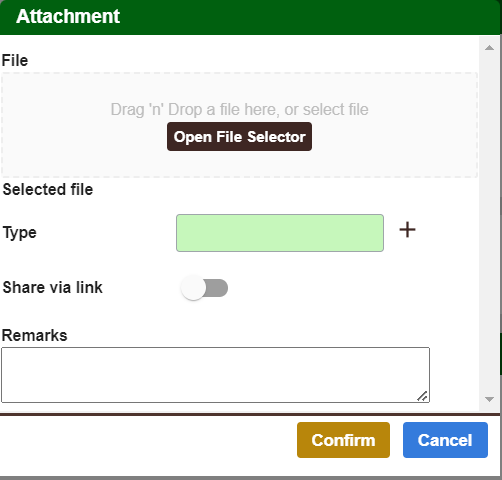
Step 2: Click confirm to close the popup
Note: At a time only one attachment can be uploaded.
Discuss
Note: Comments can be added at any time, even if the document status is pending or closed.
To add comment click on Add button and provide the comment in the popup.
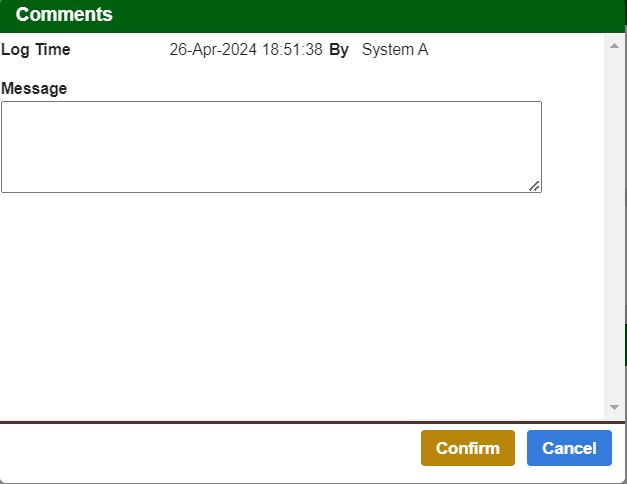
Note: User can edit only their own comment, eg: User A cannot change comment of User B
Batch
Batch tab shows the batch items created for that item.